목차
- 페이지 이동
- 메인 페이지 구성
- GesturDirector 위젯
- 두 번째 페이지 구성
- 메인 페이지 구성
✅ 페이지 이동
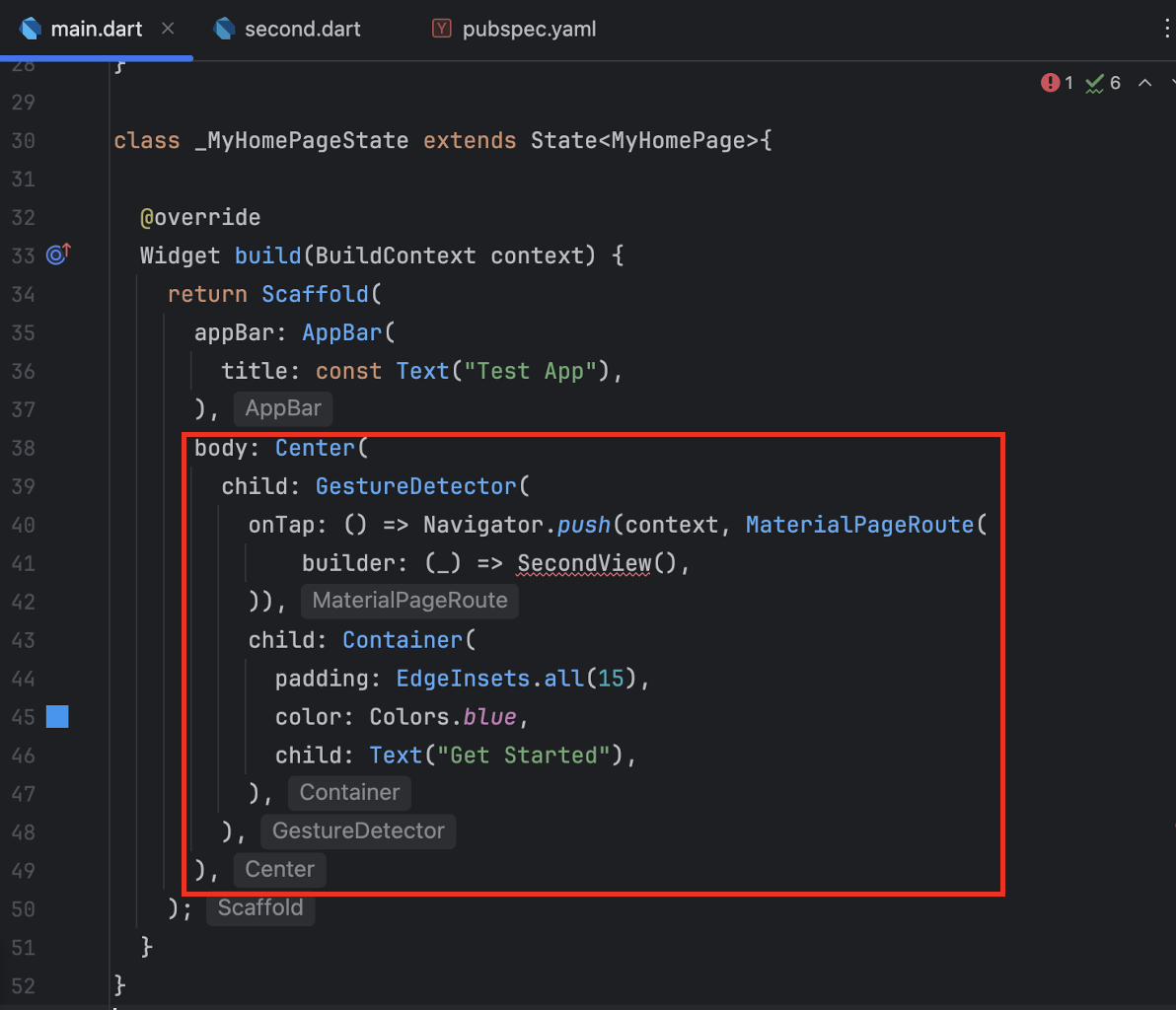
1️⃣ 메인 페이지 구성
- GestureDirector 위젯으로 onTap(클릭 작동될 기능) 구성
2️⃣ 두 번째 페이지 구성
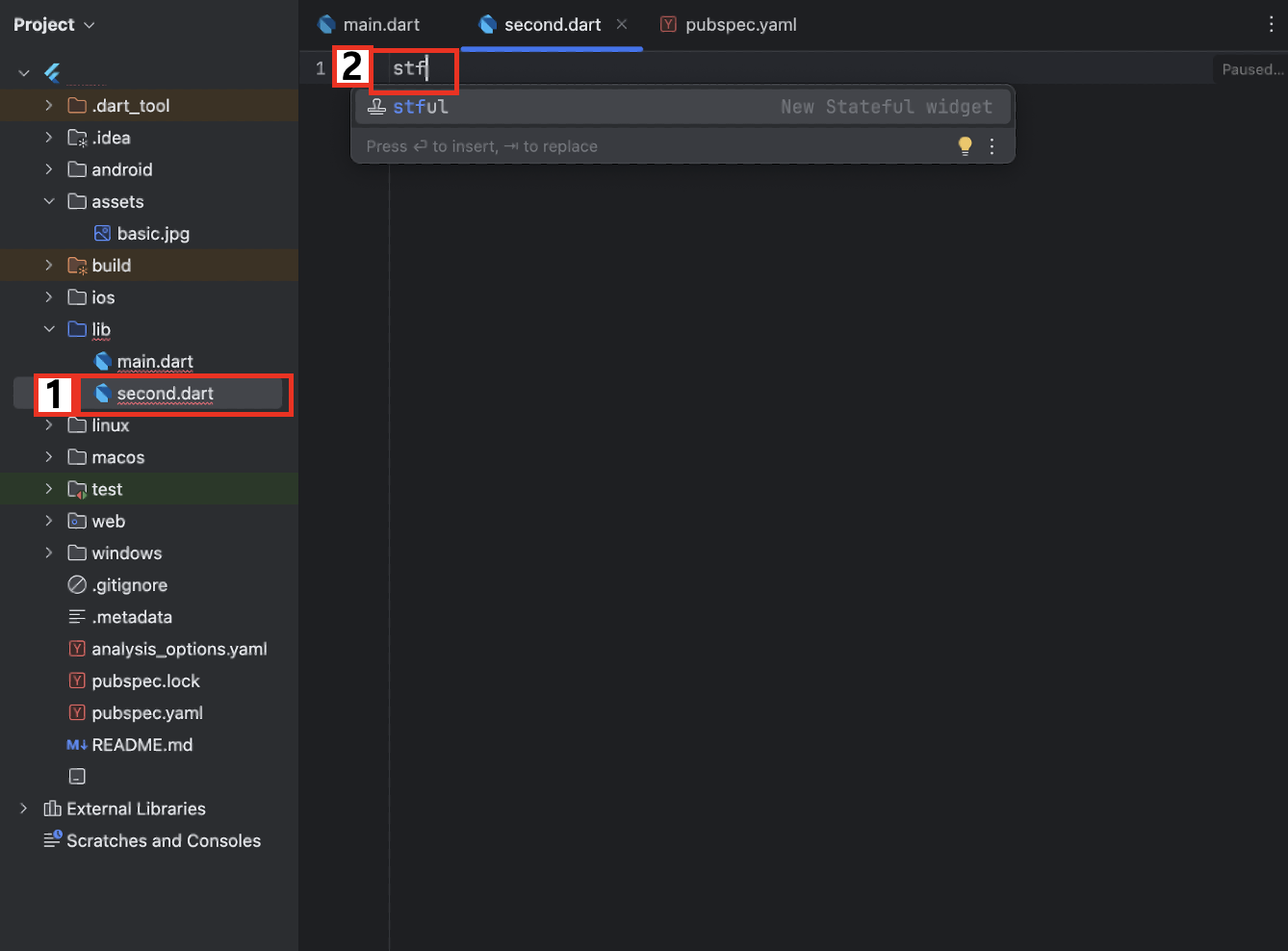
- lib 폴더 파위에 두 번째 페이지(second.dart) 파일 생성
- stf 입력 후 엔터
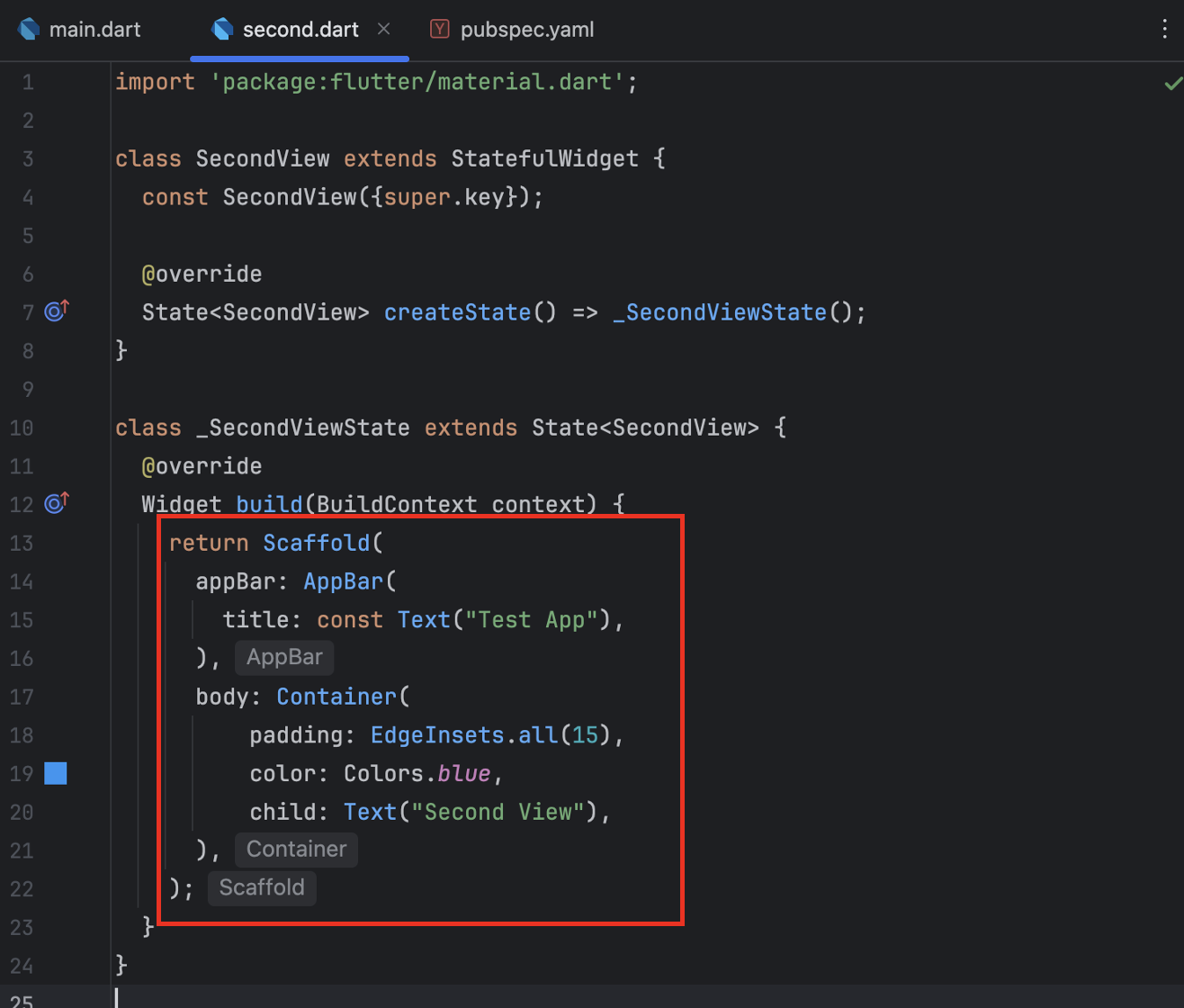
- Class명 입력 후 'flutter/material.dart' import
- return 값으로 Scaffold 위젯 구성
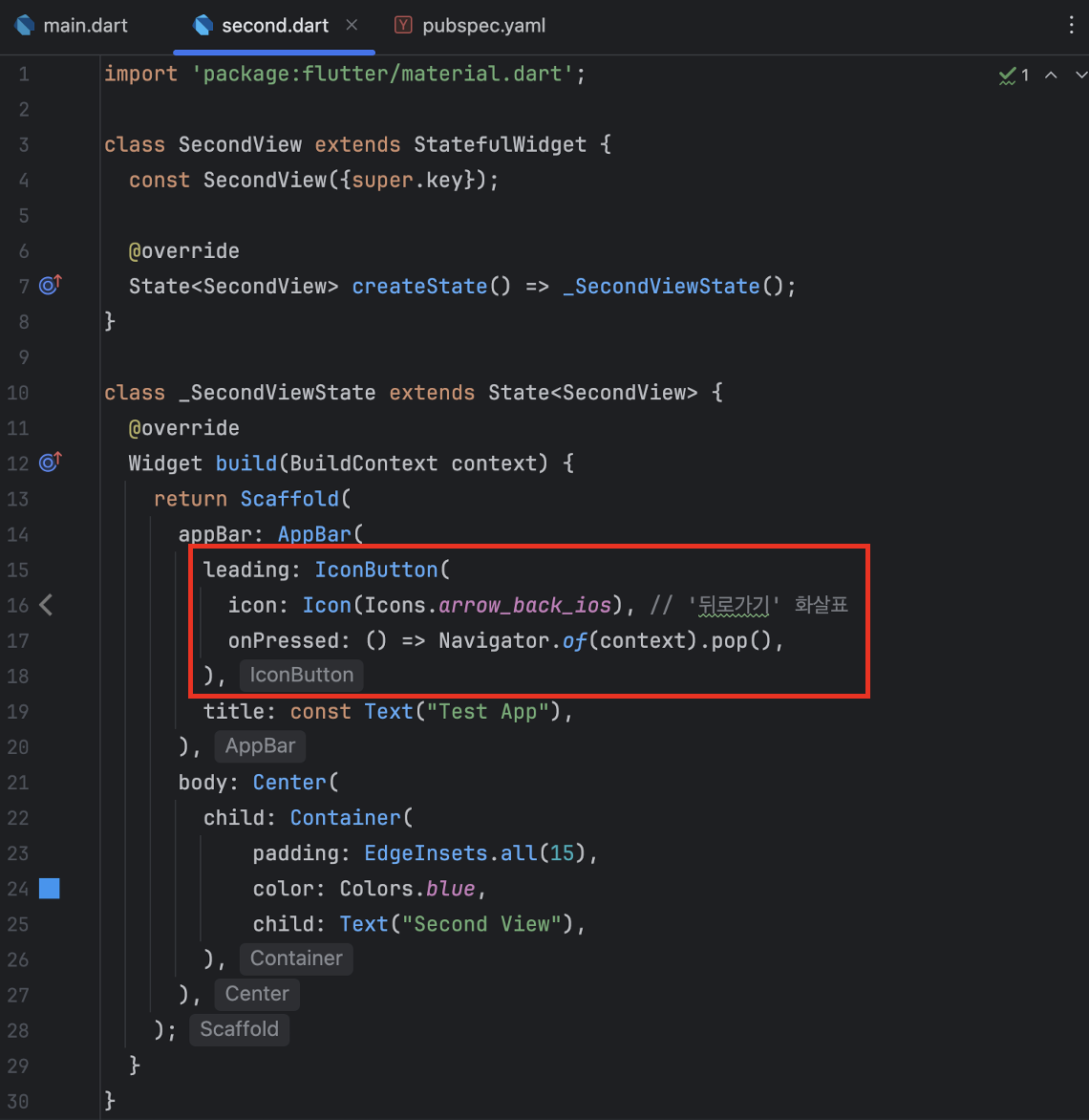
- AppBar 에 '뒤로가기' 버튼 구성
- 메인 페이지로 넘어가 에러 발생하는 Method import


3️⃣ 화면 테스트
✔️ 사용된 코드
class _MyHomePageState extends State<MyHomePage>{

  @override
  Widget build(BuildContext context) {
    return Scaffold(
      appBar: AppBar(
        title: const Text("Test App"),
      ),
      body: Center(
        child: GestureDetector(
          onTap: () => Navigator.push(context, MaterialPageRoute(
              builder: (_) => SecondView(),
          )),
          child: Container(
            padding: EdgeInsets.all(15),
            color: Colors.blue,
            child: Text("Get Started"),
          ),
        ),
      ),
    );
  }
}
import 'package:flutter/material.dart';
class SecondView extends StatefulWidget {
const SecondView({super.key});
@override
State<SecondView> createState() => _SecondViewState();
}
class _SecondViewState extends State<SecondView> {
@override
Widget build(BuildContext context) {
return Scaffold(
appBar: AppBar(
leading: IconButton(
icon: Icon(Icons.arrow_back_ios), // '뒤로가기' 화살표
onPressed: () => Navigator.of(context).pop(),
),
title: const Text("Test App"),
),
body: Center(
child: Container(
padding: EdgeInsets.all(15),
color: Colors.blue,
child: Text("Second View"),
),
),
);
}
}
'IT 언어 > Flutter' 카테고리의 다른 글
| [Flutter] 데이터를 기기에 저장하기 (SharedPreferences) [맥북💻] (0) | 2025.09.20 |
|---|---|
| [Flutter] JSON 데이터 불러오기 (Future, async) [맥북💻] (0) | 2025.09.16 |
| [Flutter] 이미지 불러넣기 (Image 위젯, NetworkImage 위젯) [맥북💻] (0) | 2025.09.14 |
| [Flutter] 알림창, 팝업창 (showDialog, AlertDialog) [맥북💻] (1) | 2025.09.13 |
| [Flutter] 화면 스크롤 (SingleChildScrollView) [맥북💻] (2) | 2025.09.07 |